
How to use a teleprompter without looking like you’re reading
Knowing how to use a teleprompter comes down to four choices: how you write the script, where the text sits relative to the lens, how big it is, and what sets the pace. Get them right and viewers see someone talking to them, not someone reading at them.
The examples use Voice Assist, a teleprompter that runs in the browser on PC, Mac, iPhone and Android. Its fixed-speed auto-scroll is free, even without an account, and it can also follow your voice. The advice itself works with any setup.
Write the script for your voice, not for the page
Most stumbles on camera start in the script: text written for the page trips you up out loud.
- One idea per line. Keep sentences short and break lines where you’d naturally take a breath. A line that holds one thought can be read at a glance.
- Write the way you talk. Contractions, everyday words, the odd sentence that starts with “And.” If a sentence trips you up, rewrite it instead of rehearsing harder.
- Spell out what you’ll say. “About two and a half million,” not “2,487,310”; “Doctor,” not “Dr.”; “example dot com,” not the bare link.
- Flag hard names. Add a pronunciation hint in square brackets right after them: “Siobhan [shi-VAWN].”
Square brackets also hold stage directions: [PAUSE], [SMILE], [LOOK AT CAMERA]. In Voice Assist, text in square brackets appears in green on the prompter and is ignored by voice recognition, so cues and hints never throw off the scrolling. Use them sparingly.
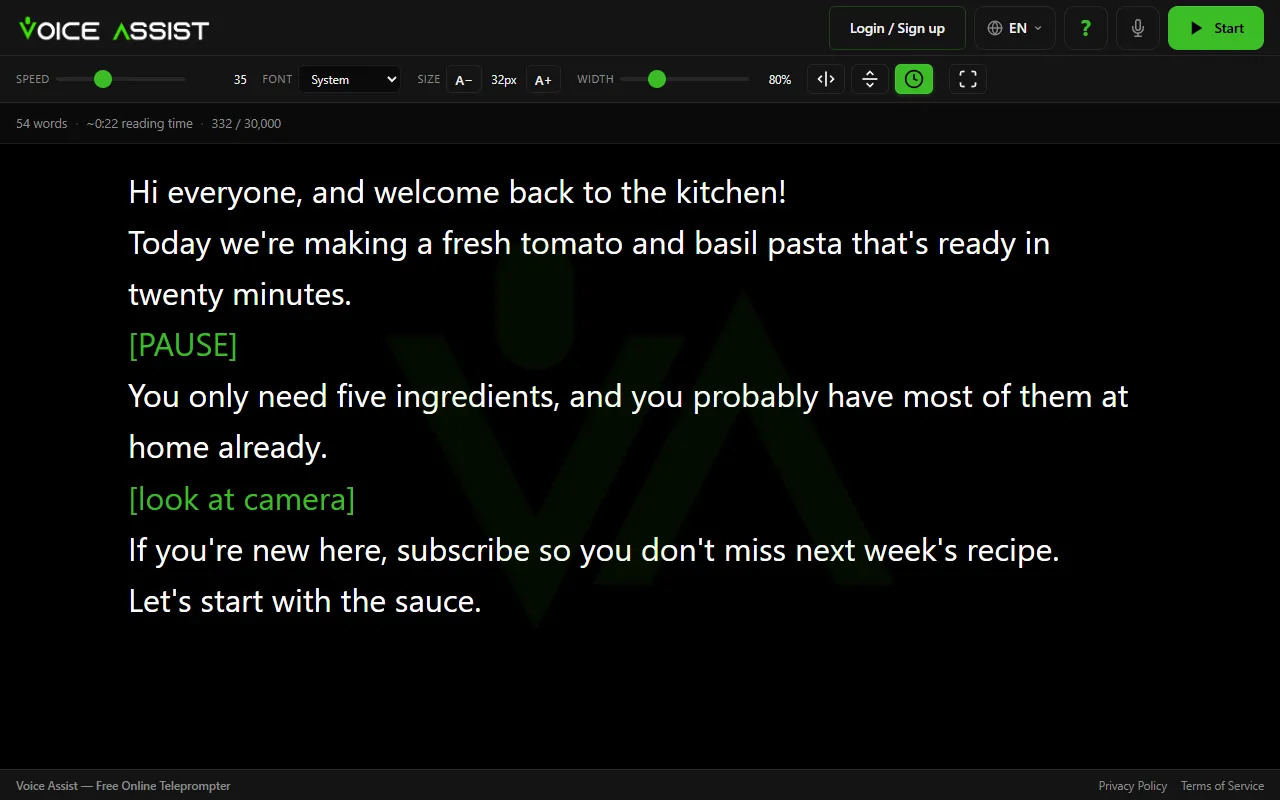
The editor estimates reading time at 150 words a minute. If your 60-second video holds two minutes of text, cut words rather than planning to talk faster.
Put the text right under the lens
Viewers can’t see your screen, but they can see your eyes. Text in the middle of a laptop screen keeps your gaze several inches below the webcam for the whole video, and every line adds a small sideways sweep. Two things fix it:
- Text right under the lens. On most laptops the webcam sits at the top center of the screen. Resize the browser window into a short strip and drag it up beneath the webcam.
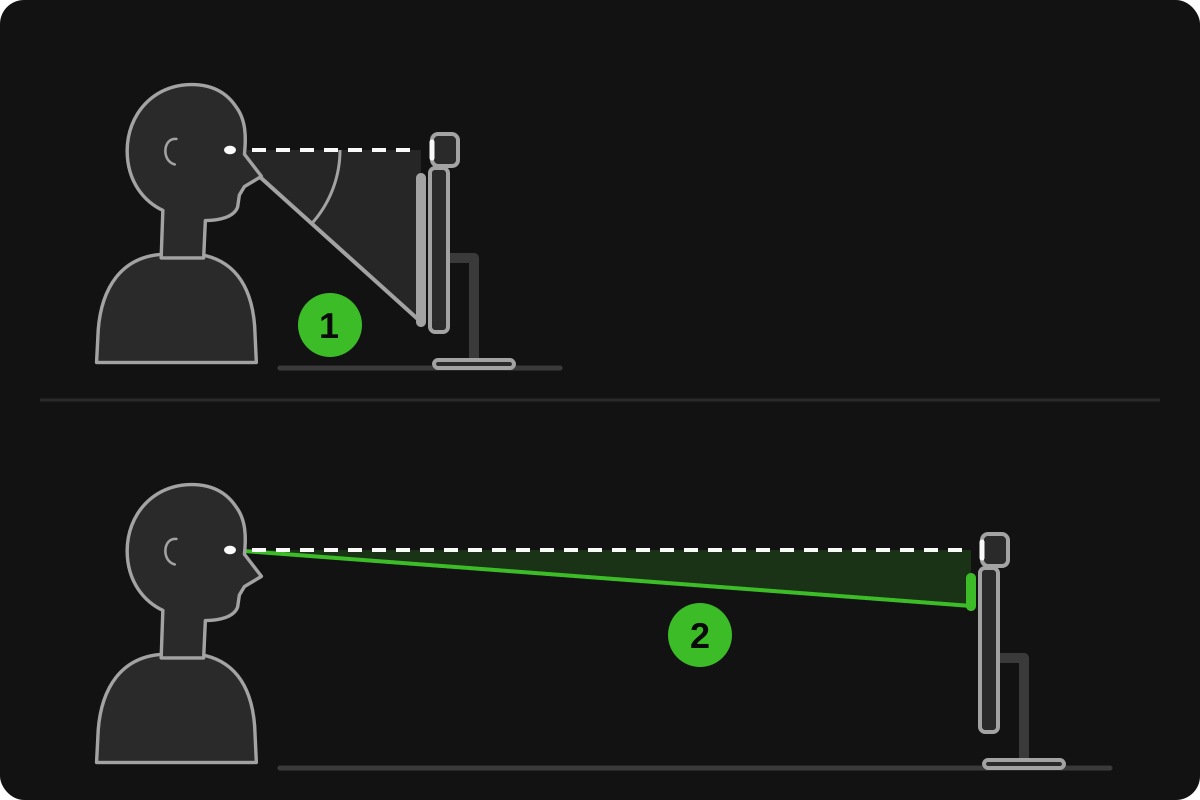
- A narrow column, at a distance. The angle your eyes sweep is roughly the width of the line divided by your distance from it. Halve the width or double the distance and the movement roughly halves.
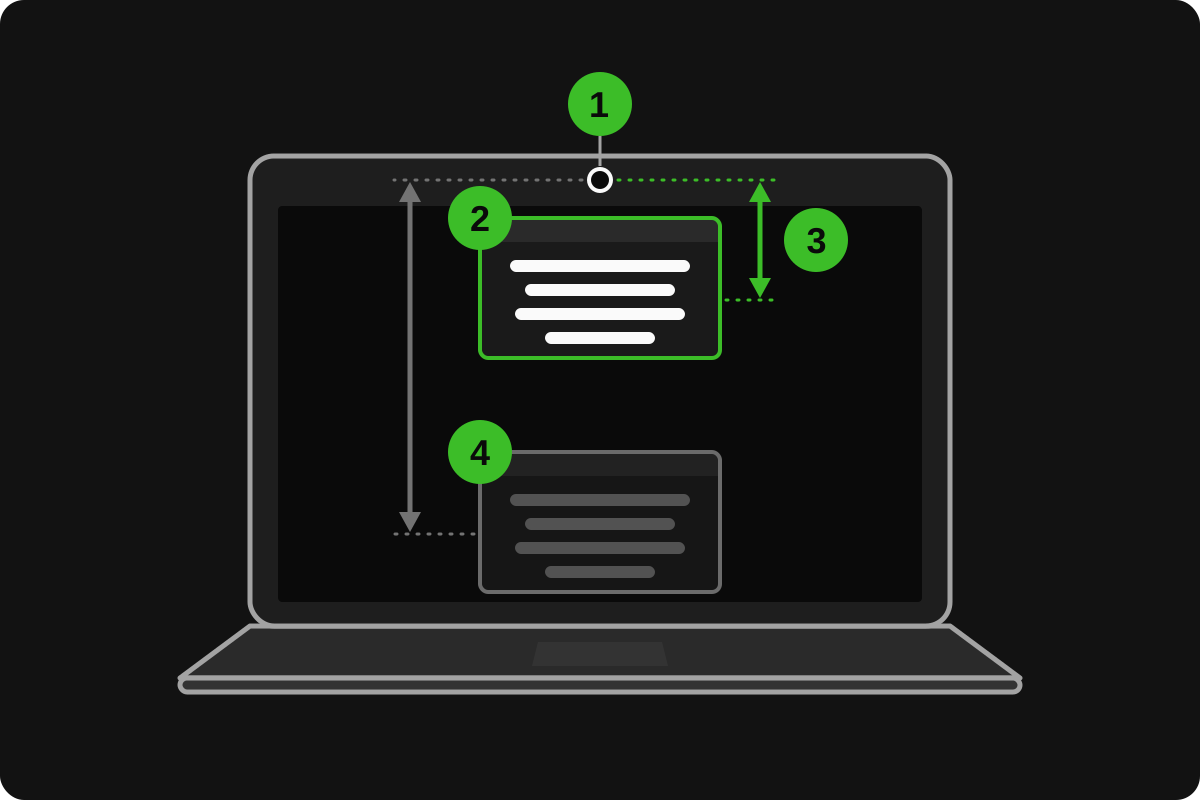
With voice scrolling on, Voice Assist keeps the line you’re reading in the upper third of the window, close to the webcam. Teleprompter glass goes further and reflects the text right in front of the lens.
Text size and line length
Bigger text is easier to read but fits fewer words per line; a wider column fits more words but makes your eyes travel. The right balance depends on your screen and how far you sit, so treat these as starting points:
- Size: readable from your recording position without leaning in or squinting.
- Line length: roughly five to eight words. Much shorter lines have to scroll faster; much longer ones show your eyes scanning.
- Contrast: Voice Assist shows white text on black, which throws less light on your face and glasses. If your lenses still reflect it, lower the brightness or tilt the screen.
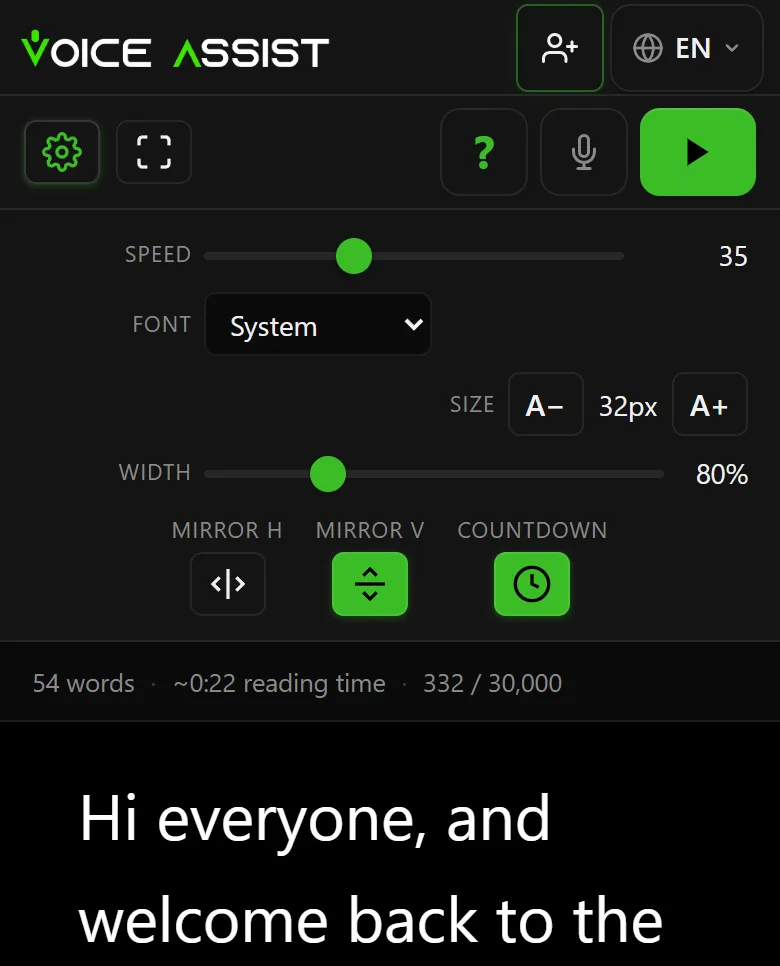
In Voice Assist, Size goes from 16 to 120 pixels, and Width narrows the column to as little as a fifth of the window. Both change while you read (+ and − for size, [ and ] for width) and are saved per device, since a phone and a big monitor need different values.
Teleprompter speed: who sets the pace?
A fixed speed gives you two ways to go wrong: it runs ahead and you rush to catch up, or it lags and you visibly wait. Nobody speaks at a constant rate. There are three ways to keep the text in step:
- An operator scrolls by hand, as in TV studios: it works, but takes a second person.
- You, with keys or a remote. In Voice Assist the space bar pauses and the arrow keys change the speed mid-scroll; a phone signed in to the same account can be the remote.
- Your voice. The prompter listens and moves the text to the line you’re reading.
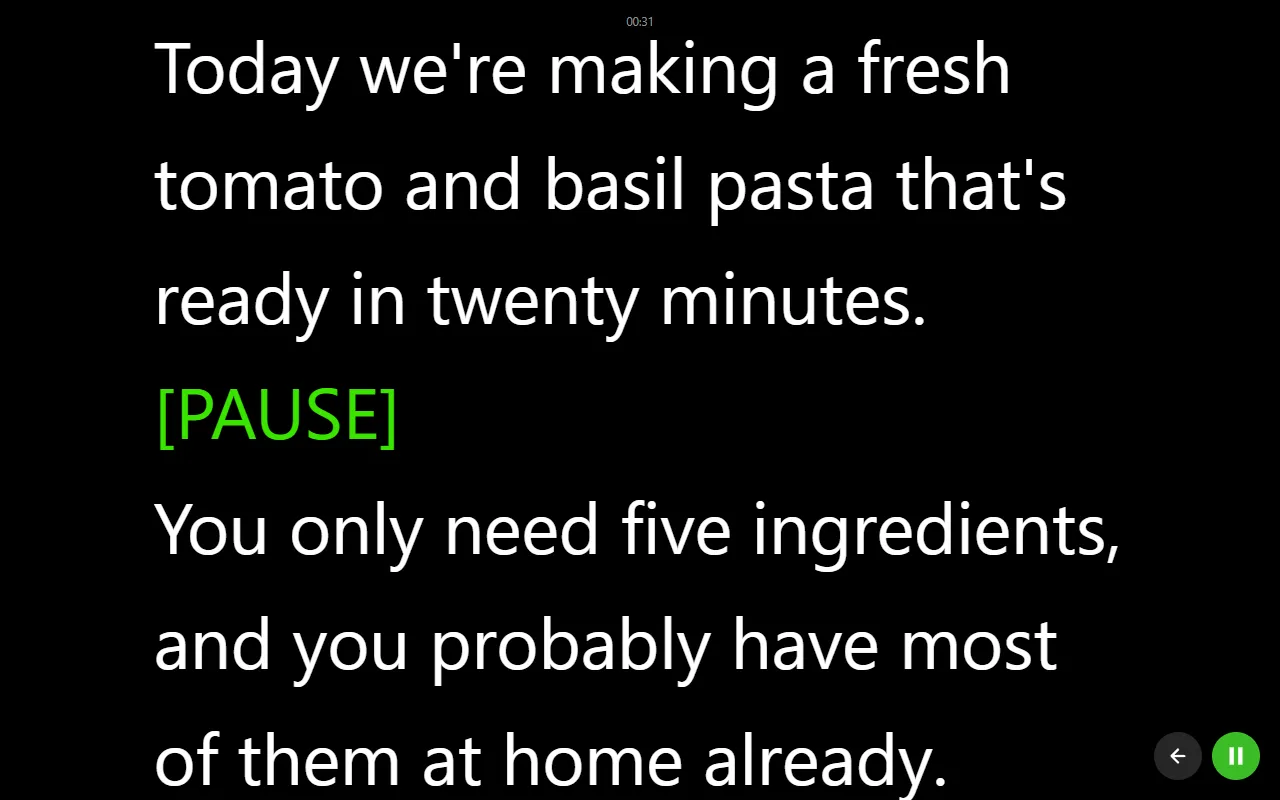
For fixed speed, read the first paragraph aloud and adjust until the line you’re reading holds its height on screen. In Voice Assist the speed setting is how fast the text moves on screen, so at the same setting, bigger text means fewer words per minute: change the size, recheck the speed.
With voice scrolling there’s nothing to set. Speed up and the text speeds up; stop and it waits. Go off script and it waits too, then picks up when you’re back on the written words. Skip a sentence and it catches up once it hears a few words in a row. It only moves forward: repeat a line and the text holds still until you pass where it was. Voice scrolling works in 10 languages and uses credits, 1 credit per minute.
Sound like you’re talking, not reading
- Rehearse out loud. The first read-through finds the sentences to fix; the second is for delivery. Your mouth catches problems your eyes skip.
- Read ideas, not words. Take in a line, then say it in your own rhythm. If a word comes out different, keep going: nobody else has the script, and a changed word or two won’t throw voice scrolling off.
- Pause on purpose. A beat after a key point sounds confident; rushing from line to line sounds like reading.
- Let your face move. Smile, nod and gesture as you would in conversation. Reading tends to freeze the body.
- Look at the camera, not at yourself. Between lines, come back to the lens, not to your own preview, and picture one person behind it.
- Improvise, then come back. A line of your own makes the take sound less read. With fixed speed, pause first; with voice scrolling, just talk, then pick up the next written line.
Using a teleprompter on Zoom, webcam videos and presentations
The placement above is all a teleprompter for webcam videos needs: a short browser window right under the lens, with a narrow column, and no hardware in the way.
The same strip works as a teleprompter for Zoom, Google Meet or Teams: the call app keeps the webcam, and the prompter shows your notes just below it. Before the call:
- If you share your screen, share only the slides window, so nobody sees the script.
- Leave Voice Assist’s video recording off: the call app is using the webcam, and some computers allow only one app at a time.
- Try voice scrolling once with the call app open, since both use the microphone.
- By default, a voice session closes after a minute without words. If you’ll mostly be listening, use auto-scroll and pause it yourself. You can turn the rule off in your account, but then you pay for all the time the microphone is open.
A teleprompter for presentations in a room is different: your eyes belong on the audience. Put the script on a tablet at the lectern; Voice Assist syncs up to three devices, so your phone can be the remote.
For a camera on a tripod with teleprompter glass, see the DIY teleprompter guide. Mirror mode flips the text vertically or horizontally, so it reads correctly in the glass.
Record the video while you read
To read a script while recording, do both in one tab. In Voice Assist, open camera mode and pick the camera, landscape or portrait, 720p or 1080p, and a corner for the preview. Recording starts with the scrolling when you press Start, and when you stop, the video is saved to your device (MP4 in Safari, WebM elsewhere). Nothing is uploaded.
- Put the preview in a top corner, so a glance at yourself stays near the lens.
- Keep the tab in front: a hidden tab can record at a lower frame rate.
- On a phone, don’t rotate it mid-take.
- Video recording uses credits like voice scrolling: 1 credit per minute.
Filming with a real camera? Turn on Save audio of every session in your account, and each take also gives you a separate audio file to sync in your editor. It’s free and works with plain auto-scroll too. If you’ll process the sound yourself, switch Audio cleanup off for the rawest track.
Checklist before you hit record
- Script read aloud, stumbles rewritten.
- Numbers spelled out, pronunciation hints after hard names.
- Prompter strip right under the lens.
- Text readable without leaning in, about five to eight words per line.
- Speed tested, or voice scrolling on in the language of the script.
- Microphone tested, other apps that use the camera closed.
- Camera at eye level, light in front of you.
- Notifications off.
- One practice take you’re happy to throw away.
Frequently asked questions
How far should the teleprompter be from the camera?
As close as possible: on a laptop, a short window right under the webcam, not text in the middle of the screen. Sitting a little farther back and narrowing the column also makes your eye movements smaller.
How fast should a teleprompter scroll?
At your speaking pace, which changes from sentence to sentence. For fixed speed, adjust while reading the first paragraph aloud until the line you’re reading holds its height on screen. With voice scrolling, the text follows you instead.
Can I use a teleprompter on Zoom?
Yes. Shrink a browser window with the teleprompter into a strip right under your webcam, so you read while looking almost into the lens. If you share your screen, share only the window with your slides.
Should I memorize the script?
No, but know it. After a couple of read-throughs out loud, you can glance at a line and say it in your own rhythm instead of reading word by word. That’s what makes it sound natural.