
Teleprompter for laptop: how to set it up for calls and videos
A teleprompter for laptop calls and videos needs no glass and no extra hardware: a small browser window with your script, placed right under the built-in webcam, lets you read while looking almost into the lens. Whether it works or gives you away depends on the setup: where the window sits, how narrow it is, how high the laptop is and what you share.
This guide covers that setup for video calls, webcam recordings and presentations. The examples use Voice Assist, a teleprompter (an autocue, as it’s often called in the UK) that runs in the browser on PC, Mac, iPhone and Android, with nothing to install. Its fixed-speed auto-scroll is free, even without an account. For writing the script and sounding natural, see how to use a teleprompter.
Put the window right under the webcam
On most laptops the webcam sits at the top center of the screen, and every inch your eyes drop below it shows on camera. The script belongs in a short, narrow window right under the lens, not in a full-size window you read from the middle.
- Open Voice Assist in a browser window of its own. If your call runs in a browser tab, drag the teleprompter tab out into a separate window, so you can see both at once.
- Shrink the window to a strip: roughly a third of the screen wide and a quarter to a third of its height is a good start.
- Drag it up against the top of the screen, centered under the webcam. On Windows, a window dragged all the way to the top edge can snap to full screen: stop just short of it. On a Mac, the window stops at the menu bar, as close to the camera as it gets.
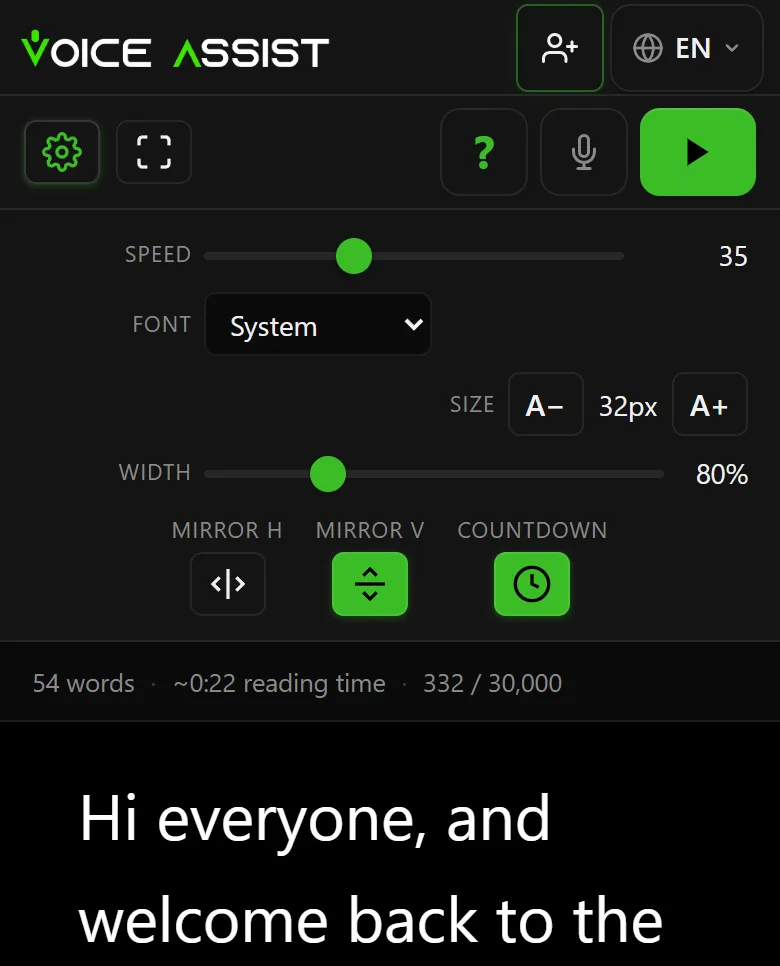
- Set Size and Width for five to eight words per line that you can read without leaning in. While you read, + and − change the size, [ and ] the width.
- Press Start and read a paragraph aloud. If your eyes still travel, narrow the column or sit a little farther back.
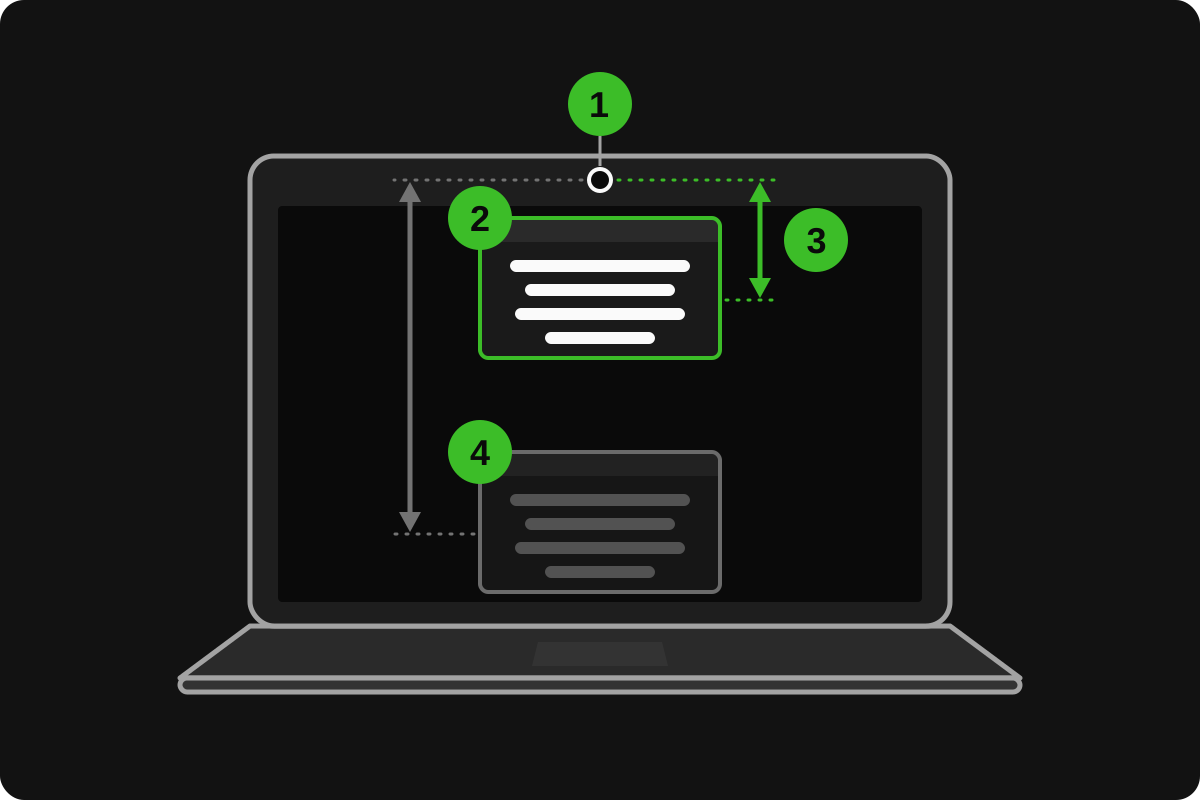
With voice scrolling on, Voice Assist keeps the line you’re reading in the upper third of the window, so the shorter the window, the closer that line is to the lens. With auto-scroll, set the speed so the line you’re reading stays near the top.
In a window this small, Voice Assist switches to its compact layout, with the settings behind the gear icon. Size, Width and the mirror switches are saved per device, so the laptop strip doesn’t change them on your phone.
Full screen (F) hides the rest of the desktop, handy when you record on your own. The text then fills the screen, so narrow the column with Width; a short window still puts the words nearer the lens.
Raise the laptop to eye level
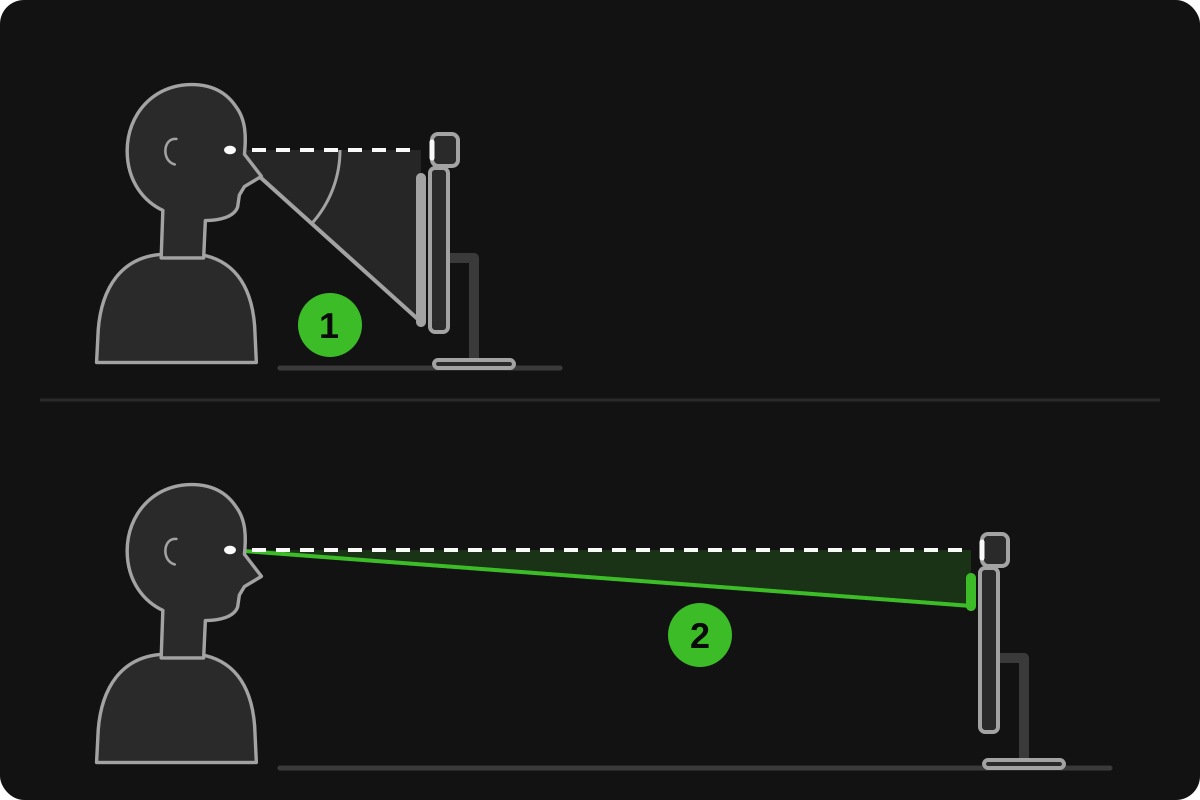
On a desk, a laptop’s webcam sits below your eyes: the camera looks up at you, and reading pulls your gaze down even further. Raise the laptop on a stand or a stack of books until the webcam is level with your eyes or slightly above, and use a separate keyboard and mouse if you need them during the take.
The webcam is in the lid, so tilting the screen tilts the camera too. Set the lid angle for your framing first, then place the window.
Then sit as far back as the text size allows, about an arm’s length to start: the farther away the screen, the smaller the angle your eyes sweep across each line.
Light your face from the front, for example by facing a window. A bright window behind you leaves your face in shadow.
External webcam or second monitor?
One rule covers every combination: the script goes on the screen the camera sits on, right under the lens.
- External webcam. Mount it on top of the screen you read from, centered, and put the teleprompter window right under it. If you record with Voice Assist, choose it under Camera in the recording setup.
- Laptop and external monitor. If you work on the big monitor, put the webcam there too, with the script under it. If you use the laptop’s own webcam, keep the script on the laptop screen.
- The script on a second screen. It’s tempting to give the script a whole monitor, but then you’re looking away from the lens for the entire take, and viewers see you talking to something off to the side.
For a camera on a tripod with teleprompter glass in front of the lens, see the DIY teleprompter guide.
Zoom, Teams and Google Meet: before the call
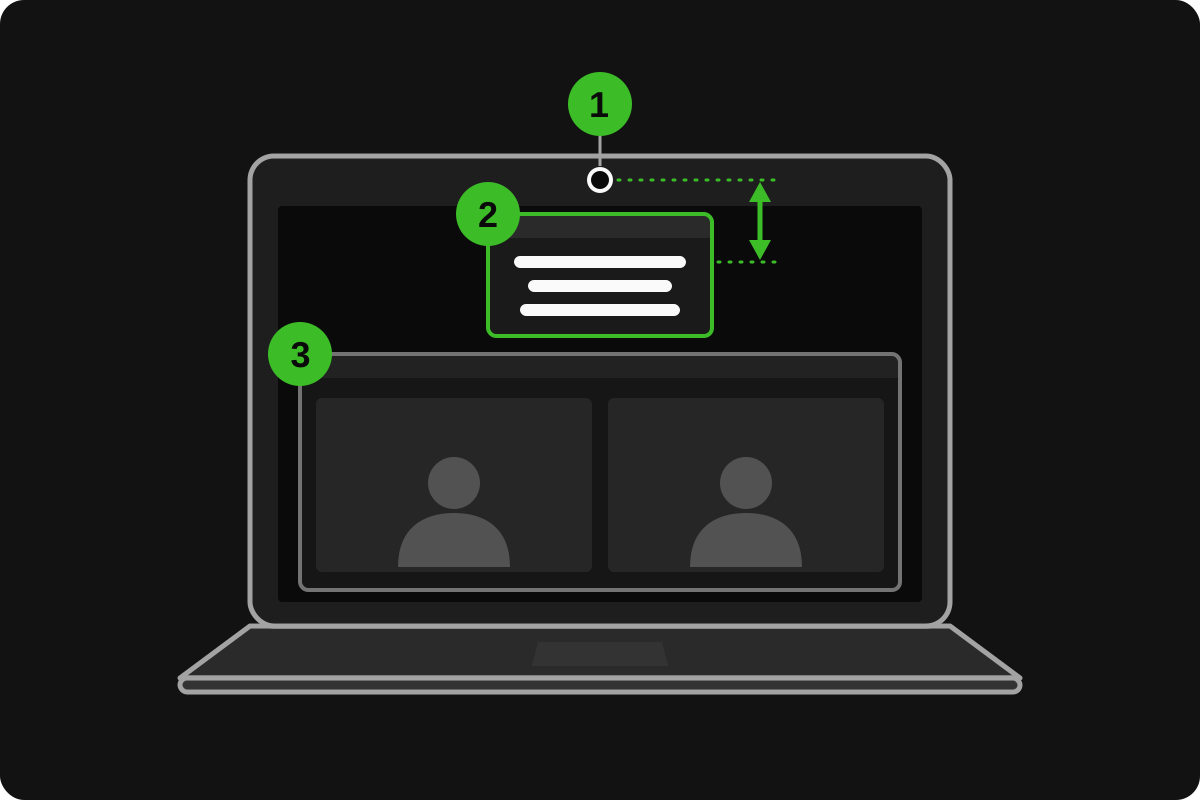
The same strip turns Voice Assist into a teleprompter for Zoom and other call apps: the call app keeps the webcam, and your script sits right under it. Before the call:
- Keep the windows apart. Clicking into the call brings it to the front, and if it overlaps the strip, it covers your script. Put the call window below the strip, and not in full screen.
- Share a window, not the screen. When you share, pick the window with your slides rather than the entire screen, so nobody sees the script.
- Wear headphones, so the microphone hears you and not the other people on the call.
- Try the microphone with the call open. Voice scrolling and the call app both use it. On most computers they share it without trouble, but check once before a call that matters, or start voice scrolling from your phone as a remote, which listens through its own microphone.
- Leave Voice Assist’s video recording off. The call app is using the webcam, and another app often can’t open it at the same time.
- Click the strip before using shortcuts. Keys go to the window you clicked last, so after typing in the call’s chat, click the teleprompter before pressing the space bar.
In a call you also listen. By default a voice session closes after a minute without words, so if you’ll spend long stretches listening, use auto-scroll and pause it with the space bar. How to use a teleprompter explains the rule and how to turn it off.
Record a webcam video in the same tab
To read your script while recording, you don’t need a second app: Voice Assist also works as a teleprompter for webcam recordings. It takes an account with a verified email.
- Click the camera icon, Record video.
- Choose the Camera and Microphone, the Resolution (720p or 1080p), the Orientation (16:9 or 9:16) and the Preview position, then press Confirm. The camera stays on as a preview but doesn’t record yet.
- Press Start: the recording and the scrolling begin together.
- At the end of the script, or when you exit or press Stop and save, the video is saved to your computer. Nothing is uploaded.
- Put the preview in a top corner, near the webcam, and keep it small: you can drag and resize it.
- Camera mode turns voice scrolling on: the text follows your voice, and the take uses voice credits, 1 credit per minute, with nothing extra for the video.
- Close call apps first: they may be holding the webcam.
- Keep the tab visible: a hidden tab can record at a lower frame rate.
- Sync isn’t available while the camera is in use, so run the take from the laptop, not from your phone.
- On a computer, a recording stops by itself after 30 minutes at 720p or 25 at 1080p, with a warning before it does.
Presenting from your laptop
Online, a teleprompter for presentations is the same strip under the webcam, with the slides in a window of their own. Run the slideshow in a window, not full screen, so it doesn’t cover the script, and share that window. Moving through the slides keeps the keyboard busy, so let your phone run the script, and you won’t have to click back and forth between windows.
In a room, your eyes belong on the audience rather than on a lens. The laptop on the lectern can show the script in large text while the projector shows the slides, and your phone can run the script from your hand.
Use your phone as a remote
A phone signed in to the same account can run the teleprompter on your laptop, so your hands stay off the keyboard and the call or the slides keep the focus.
- Sign in to the same account on the laptop and on the phone.
- Press the sync button on the laptop, then on the phone.
- On the phone, choose Remote control.
- Pick the script, then start, pause, change the speed, restart or end the reading from the phone.
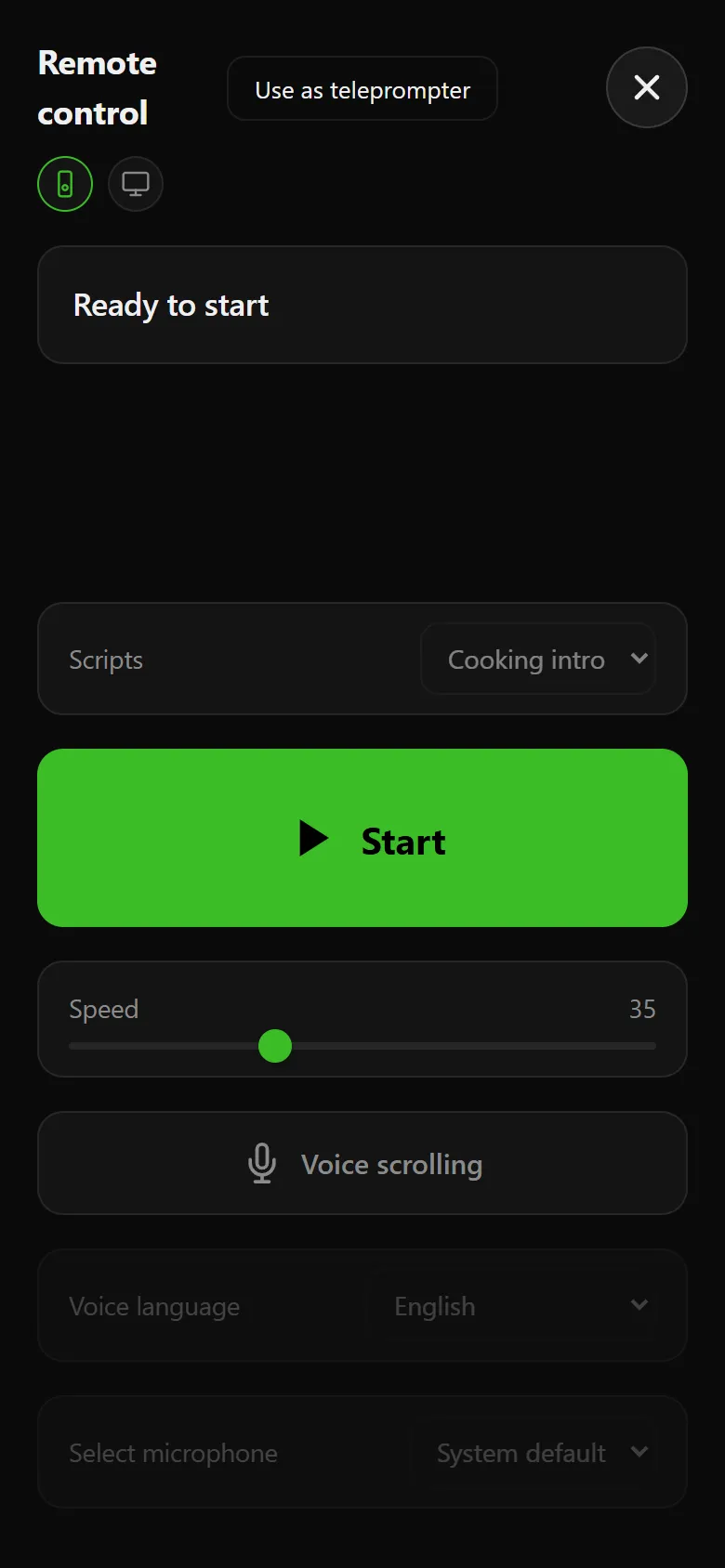
Turn on Voice scrolling on the remote and the phone’s microphone does the listening: keep the phone close to you, and the laptop’s microphone stays with the call. Sync needs an account and links up to three devices; it isn’t available while Voice Assist’s camera is in use.
Teleprompter for laptop checklist
- Laptop raised so the webcam is at eye level, lid angle set for the framing.
- Teleprompter in its own window: short, narrow, right under the webcam, on the screen with the camera.
- Five to eight words per line, readable from where you sit.
- Call window below the strip, not overlapping it and not in full screen.
- Sharing set to a single window, never the entire screen.
- Headphones on, microphone tried with the call open.
- Voice Assist’s video recording off during calls; call apps closed before you record with it.
- Phone synced as a remote, if you want your hands off the keyboard.
- Notifications off.
Frequently asked questions
Can I use a teleprompter on Zoom without people noticing?
Mostly, yes. With a short, narrow window right under the webcam, your eyes stay close to the lens and the movements that are left are small. What gives you away is text in the middle of the screen, long lines your eyes have to sweep, and sharing the whole screen instead of a single window.
Do I need to download anything?
No. Voice Assist runs in the browser on PC and Mac, so there’s nothing to install. Auto-scroll works without an account; voice scrolling, video recording and phone sync need one. When you record a video, the file is saved to your computer.
Does it work on a MacBook?
Yes, in Safari or Chrome. The webcam sits at the top center of the screen, so drag the teleprompter window up until it stops at the menu bar and center it under the camera. Full screen, voice scrolling and video recording work on a Mac too.
Can I read the script from a second monitor?
You can, but the camera will see you looking away for the whole take. Keep the script on the screen the webcam sits on, right under the lens. If you’d rather read from the big monitor, move the webcam there.
What does it cost?
Fixed-speed auto-scroll costs nothing, with or without an account. Voice scrolling and video recording use credits, 1 credit per minute: you get 10 minutes when you sign up, no credit card needed, then buy credits when you need them. There’s no subscription, and credits never expire.